Create the assignment
Statement, criteria, materials and what the AI may do, in the assignment editor. Save it as a .closedtask file.

Prepare an assignment with its materials and AI rules. When you receive the work, as a .closedpro file or as a PDF, Closed Pro shows you how it was written, every question to the AI and whether it was done with your assignment.
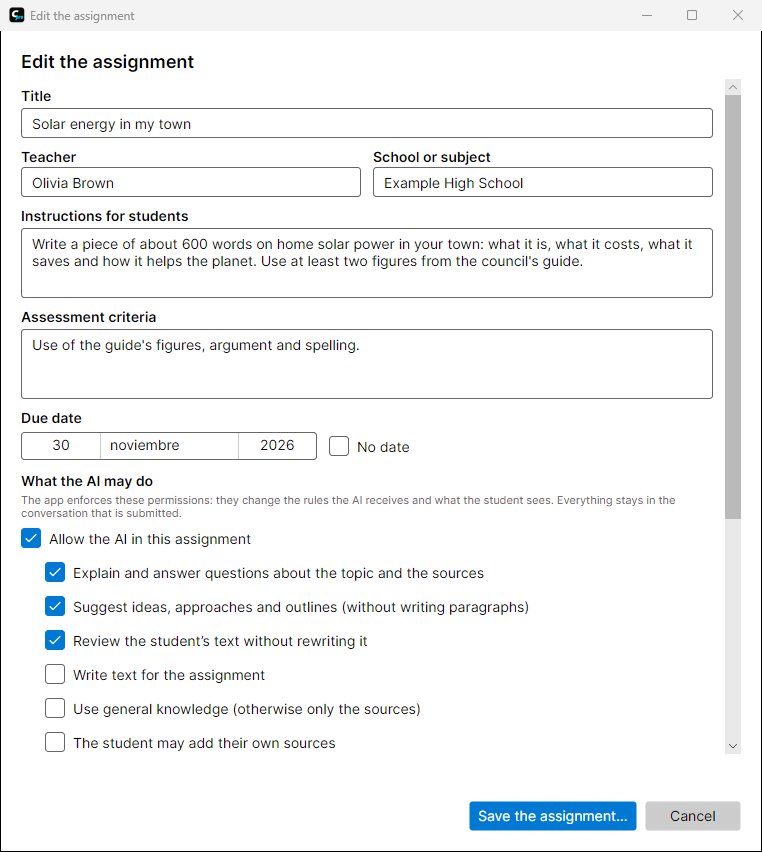
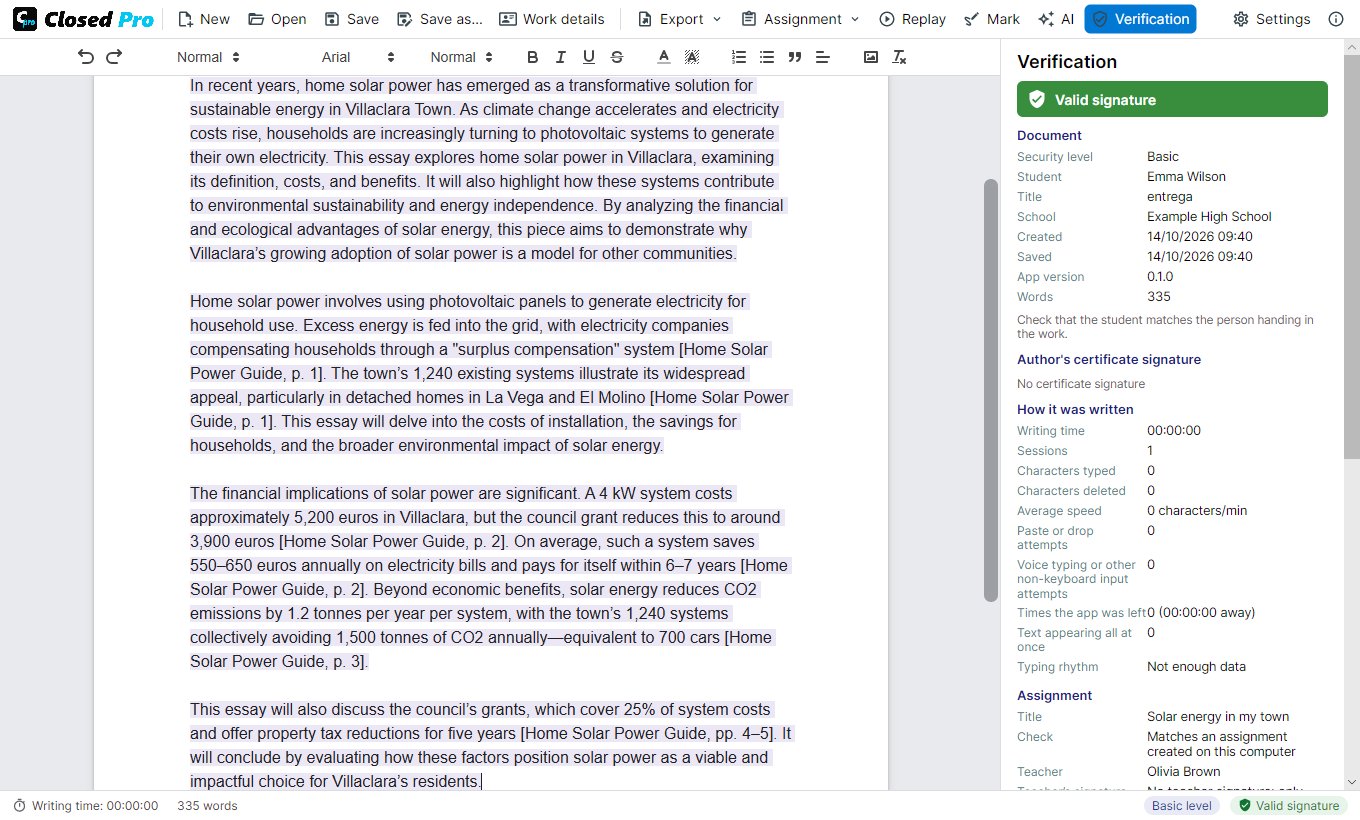
Statement, criteria, materials and what the AI may do, in the assignment editor. Save it as a .closedtask file.
On Moodle, Classroom, Teams or by email. Each student opens it with Closed Pro and starts the work.
The student hands in the .closedpro file or the submission PDF, which carries the signed document inside.
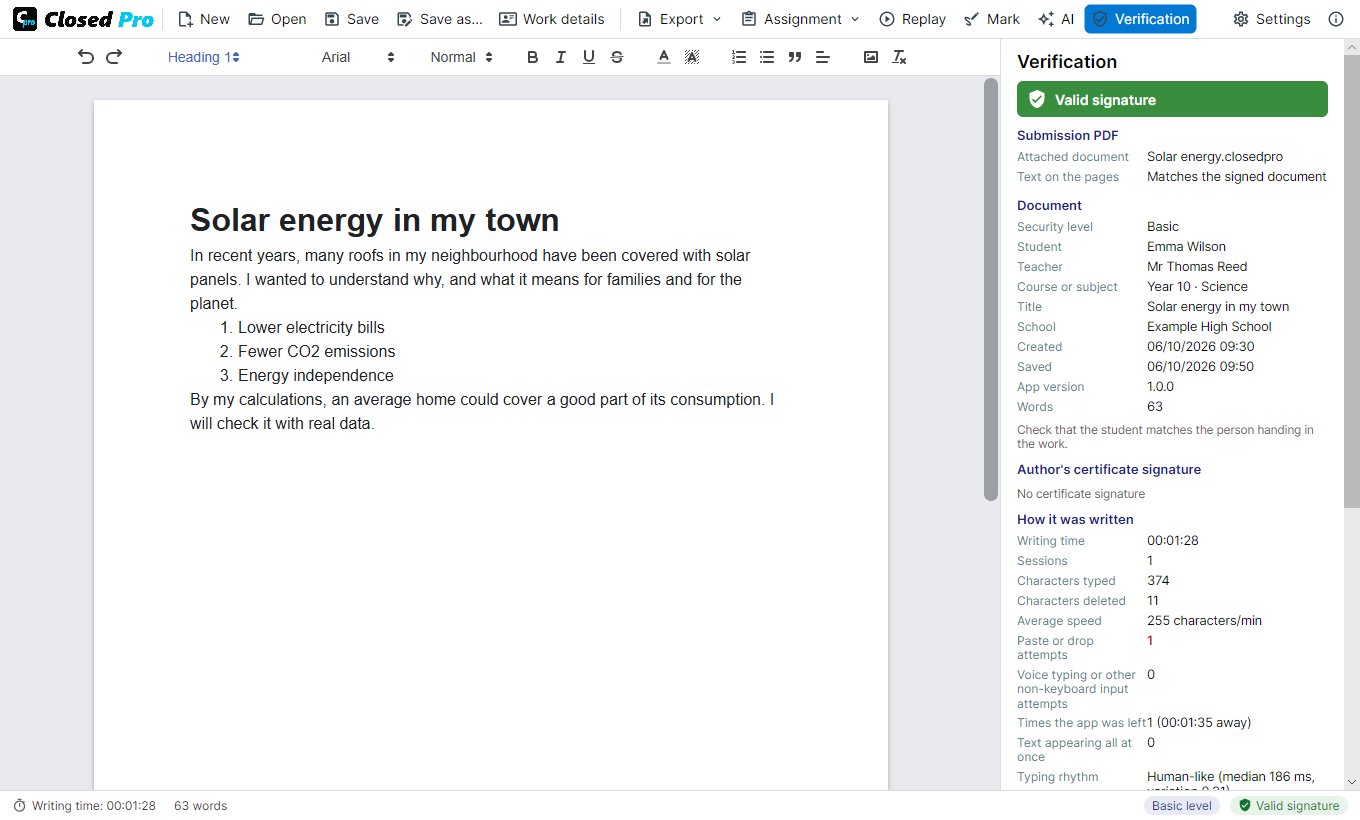
Open it: the signature, the writing data, the assignment, the AI conversation and the replay. Then mark it on the PDF.
The app's rules come before your instructions and the AI's: what a permission does not allow, Closed Pro does not allow.
The AI panel does not appear and the work is written as in Closed Lite: typing only, recorded and signed.
The AI helps to understand the topic and the materials and to organise ideas, without writing paragraphs for the work.
«Review my text» comments on clarity, structure, argument and spelling without rewriting anything.
Off by default. If you allow it, inserted AI text stays marked in purple; if not, Closed Pro refuses the request itself.
Without general knowledge, the AI answers only with the materials of the assignment and the student's sources, citing the page.
A maximum number of questions for the whole work. The student sees how many are left.
The verification report in PDF: the signature status, how the work was written, the assignment it was done with (or that there was none), the use of the AI, the student's questions and, in an annex, the whole conversation with the cited sources and what was inserted into the document.
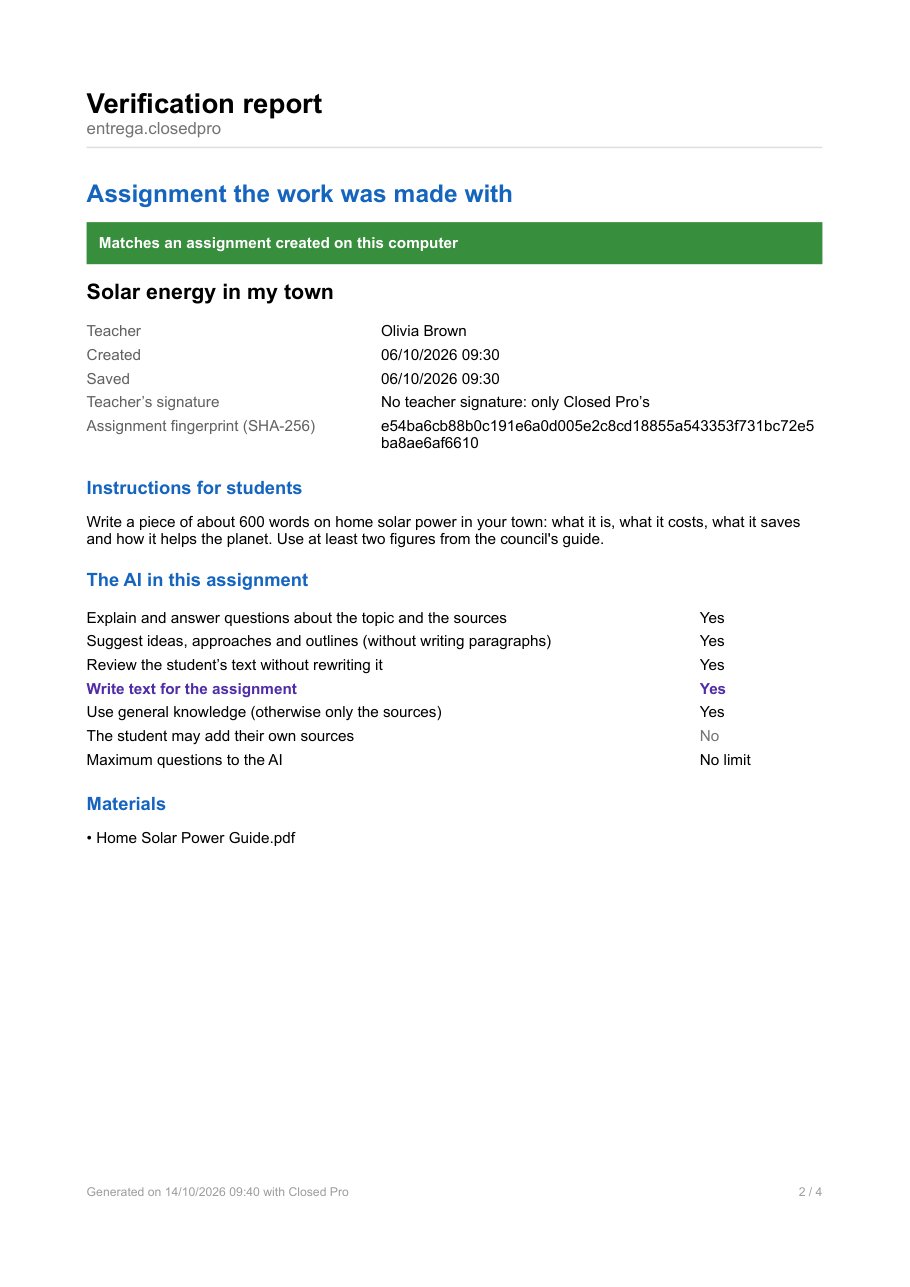
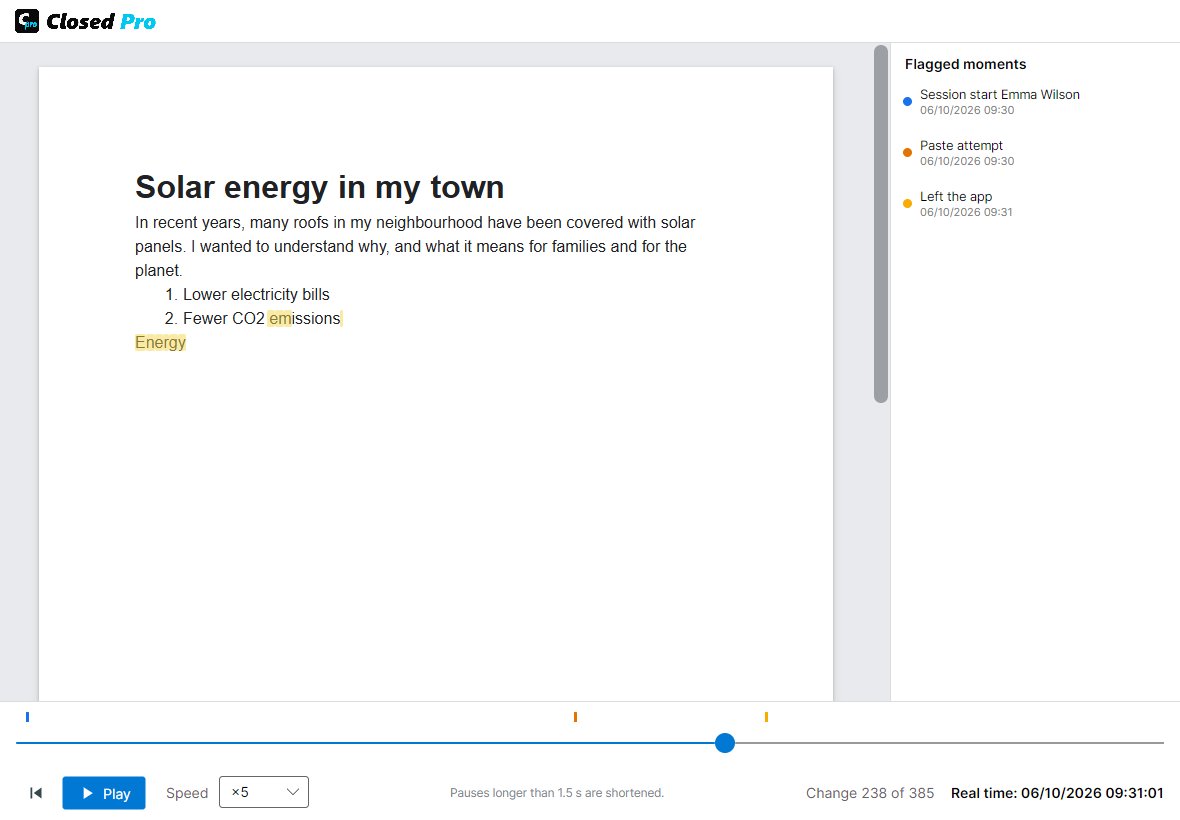
As in Closed Lite: writing time, sessions, deleted characters, blocked attempts to paste or dictate, exits from the program and the replay of the writing at up to ×100. Closed Pro also opens and verifies the work done with Closed Lite.
Many platforms (Moodle, Classroom, Teams) only accept PDF or Word. That is why, when saving, the student chooses between the .closedpro file and a PDF that opens in any viewer and carries the signed .closedpro document inside, as an attachment. Its cover shows the student's data, the assignment and a summary of the use of the AI; text inserted from the AI is marked in purple.
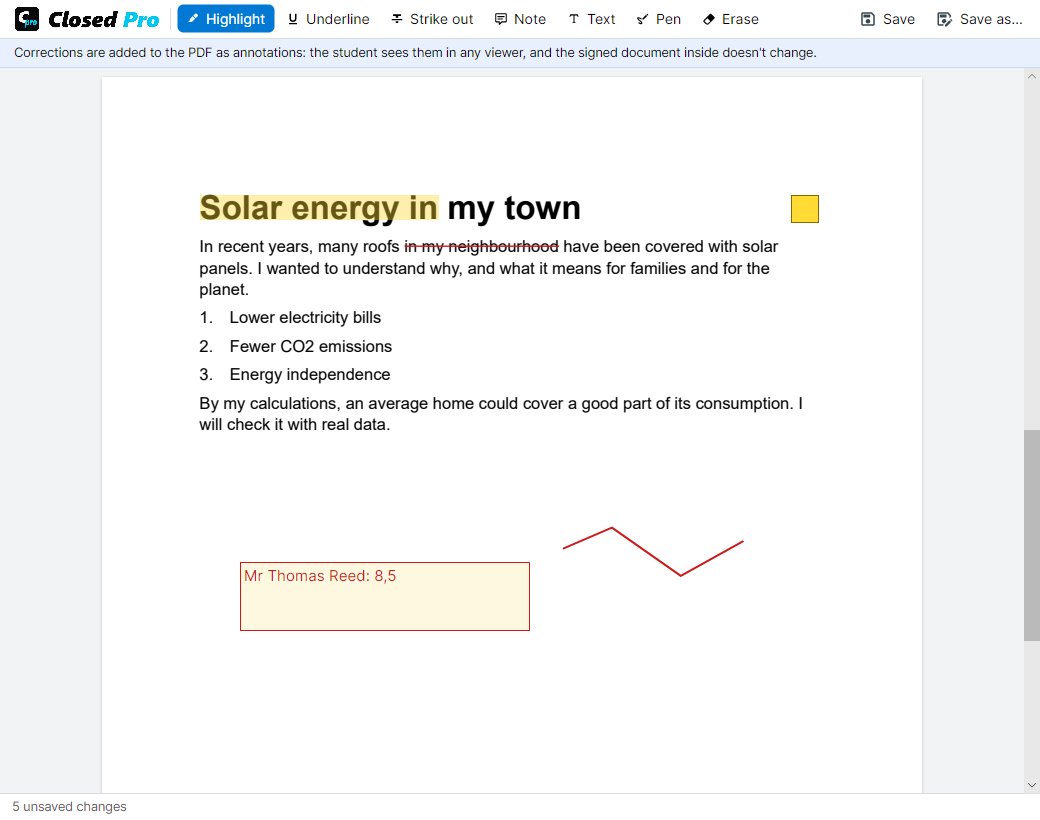
With «Mark», highlight, underline or strike through, add notes, text such as the final grade, or draw with the pencil. The corrections are saved in the PDF as annotations that the student sees in any viewer.